
Connected Accounts
The identities tools act with — named workspace service connections and each user's own connected accounts, managed per workspace with grants held platform-side.
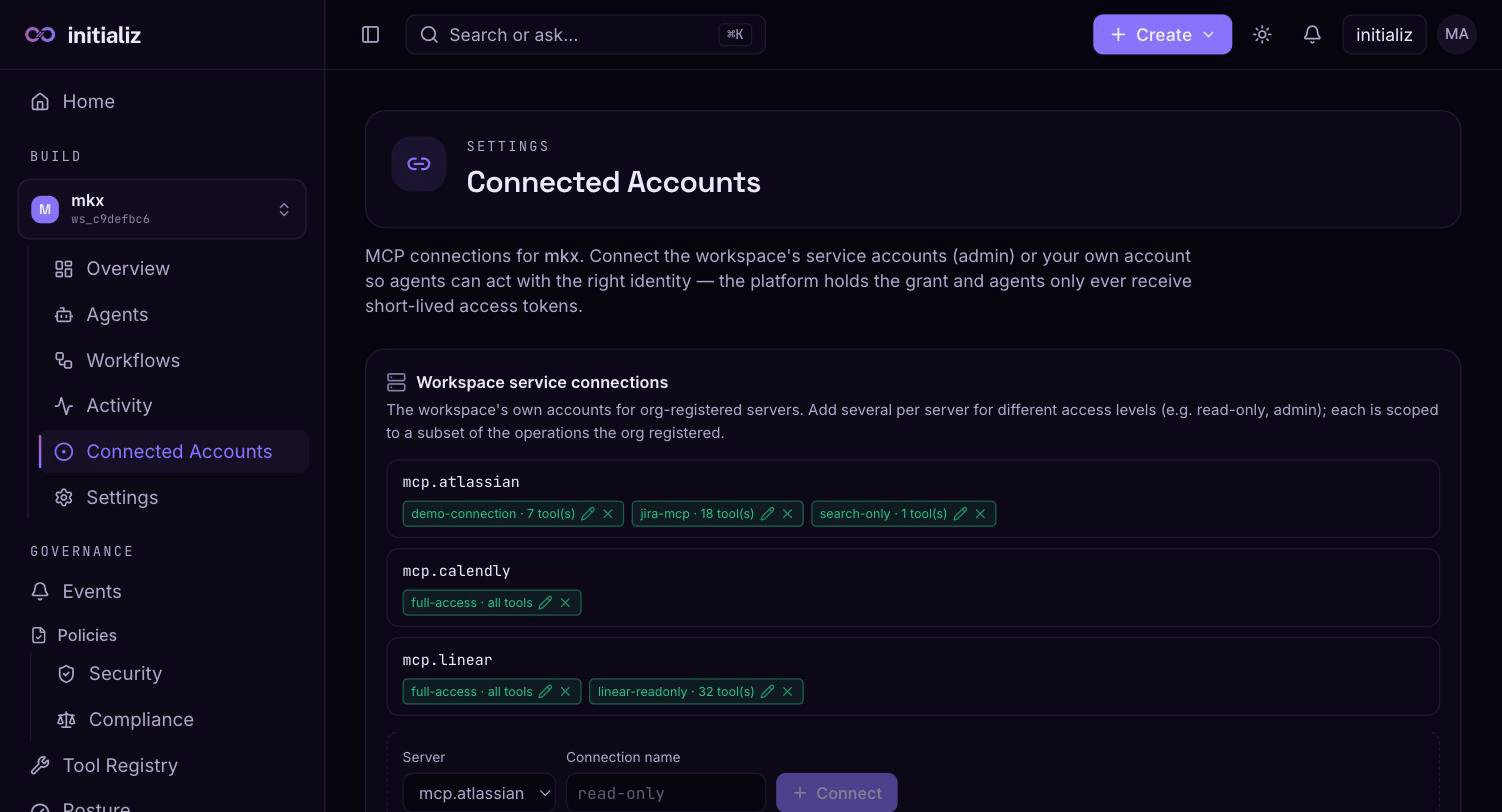
Admitting a tool server to the Tool Registry makes its tools available; calling them still needs an identity on that server. Build → Connected Accounts is the per-workspace screen where those identities live — the workspace's own service accounts on one side, and your personal accounts on the other.
Connected accounts
A tool runs with one of two identities:
- A workspace service account — the tool acts as the workspace itself, a shared automation identity managed by workspace admins.
- Your own account — the tool acts as you; each user connects their own account individually.
In both cases the platform holds the grant: agents only ever receive short-lived access tokens, and a connected account's long-lived credential never reaches an agent. Connections are always per workspace — each workspace brings its own accounts, even for servers registered org-wide.
Workspace service connections
Workspace admins (and org admins) see a Workspace service connections panel on the Connected Accounts screen. It manages the workspace's own accounts for the servers admitted in the Tool Registry:
- A workspace can hold several named connections per server — for
example a
read-onlyand anadminconnection backed by different accounts. - Each connection can be scoped to a subset of the server's tools. That allowed-tools list is a ceiling: an agent bound to the connection can never call more than it grants. Selecting no tools allows all of the server's registered operations.
- Adding a connection asks for a name and an optional tool selection, then hands the browser to the provider's consent screen; completing consent saves the connection.
- When a skill uses the server, it binds to one of these connections by name. You can edit a connection's allowed tools at any time without re-authorizing — agents bound to it pick up the new tool list at their next rebuild.
Managing service connections requires the workspace admin role (org admins qualify everywhere); other workspace members don't see this panel.
Your connected accounts
Every workspace member sees a Your connected accounts list on the same screen: the servers whose tools act as the signed-in user. Connecting hands you to the provider's sign-in and consent screen and returns you to the console; disconnecting removes the grant, so the next agent action that needs your account will prompt again. A connection whose grant has stopped working is flagged Reconnect needed.
Connecting from a conversation
When an agent tries to use a tool that acts as you and you haven't connected that account in the workspace, the agent's chat surfaces a Connect prompt in the conversation itself. The provider's consent screen opens in a popup so the conversation stays put, and after you approve:
- A tool call that was paused waiting for you resumes on its own — you don't re-send anything.
- A turn that failed because the account wasn't connected is re-sent automatically.
Open prompts also appear on the Connected Accounts screen under Waiting for you to connect — each naming the paused agent's server and any expiry — and, for agents connected to Slack, arrive as a Slack direct message with a connect link. All three paths complete the same connection; the parked call resumes whichever one you use. The consent lifecycle is auditable — see Approvals and consents.