
Getting started
Sign in to the console, learn the ask box and command palette, and understand workspaces before you build your first agent.
This section walks you through your first session on the initializ AI Platform — from signing in to a running agent.
Signing in
You sign in to the console with your organization's identity provider (OIDC — for example Okta). The identity provider only authenticates you; access to an organization on the platform is granted separately by an organization admin. If you sign in and see a screen telling you to contact your administrator, you have no organization membership yet — ask an admin to invite you under Organization → Settings.
If your admin hasn't finished initial setup yet, see First login for what to expect.
Where you land
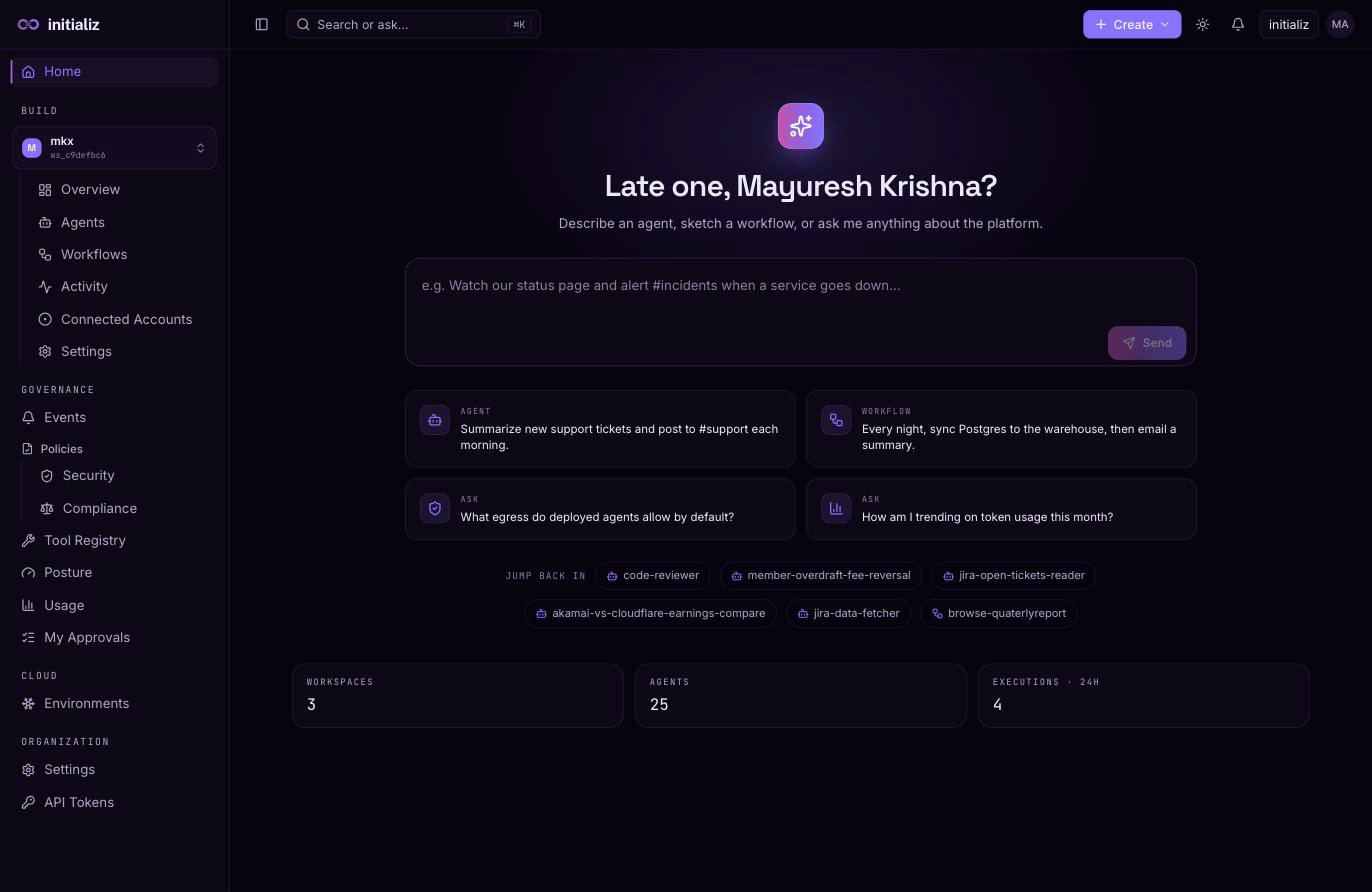
After signing in you land on Home — an org-level launchpad with:
- A personalized greeting and a single ask box as the front door.
- Jump back in — your recent agents and workflows.
- A slim strip of org-wide stats (agents, executions in the last 24 hours).
The left sidebar groups the console into Build (workspace-scoped: agents, workflows, activity, My Approvals — your personal approval queue — connected accounts, and more), Governance (security events, policies, tool registry, agent identity, posture, usage), Cloud, Gateway, and Organization. What you see depends on your role as well as your deployment: org-level groups appear only for the roles that can use them (Governance for org admins and security admins; Cloud, Gateway, and Organization Settings for org admins), and sections your deployment has disabled are hidden entirely — so your sidebar may show fewer items than the docs describe. Hiding an item is a convenience, not the security boundary: the platform enforces permissions on every request underneath.
The ask box and the command palette
The ask box on Home and the command palette (press ⌘K, or Ctrl+K on Windows/Linux) share one input with three jobs:
- Navigate — type a screen name ("policies", "environments") and jump straight to it.
- Find — search your entities (agents, workflows) by name.
- Ask — phrase a question or a goal ("create an agent that triages tickets", "why was my request blocked?") and the platform's intent router answers with links to the right screen, or hands you off into a create flow with your goal pre-filled.
Question-like input promotes the Ask row to the top; otherwise navigation matches come first.
Workspaces in one minute
Everything you build lives in a workspace:
- Agents and workflows belong to exactly one workspace.
- A workspace is backed by one Kubernetes namespace, provisioned on the cluster of the environment the workspace is bound to.
- The Build section of the console is always scoped to one workspace at a time; the workspace picker at the top of the sidebar switches that scope.
Read Workspaces and environments for the full model.