
Organization settings
Manage organization membership and org-wide defaults — invite users by email, assign org or workspace roles, set the default workspace, and find your org ID.
Organization → Settings manages who belongs to your organization and what they can do. Your identity provider only authenticates users — membership here is what ties an authenticated identity to the organization and grants it anything.
Only org admins can change membership; everyone else sees the roster read-only.
Your organization ID
The screen shows the organization's ID with a copy action. You need it when
authenticating the CLI (--org <org_id>) and for
programmatic API access alongside an
API token.
Default workspace
The screen also sets the organization's default workspace — the workspace new members land in on their first sign-in, including users auto-enrolled through SSO. Pick it from the dropdown; the change applies immediately, and there is always exactly one default (choosing a new one moves it). The default workspace can't be deleted while other workspaces exist.
Only org admins can change the default. If no default is set, the screen shows a warning — new members would land nowhere until one is picked. Each workspace's own settings offer a Make default action too; this dropdown is the org-level view of the same single default.
Inviting a member
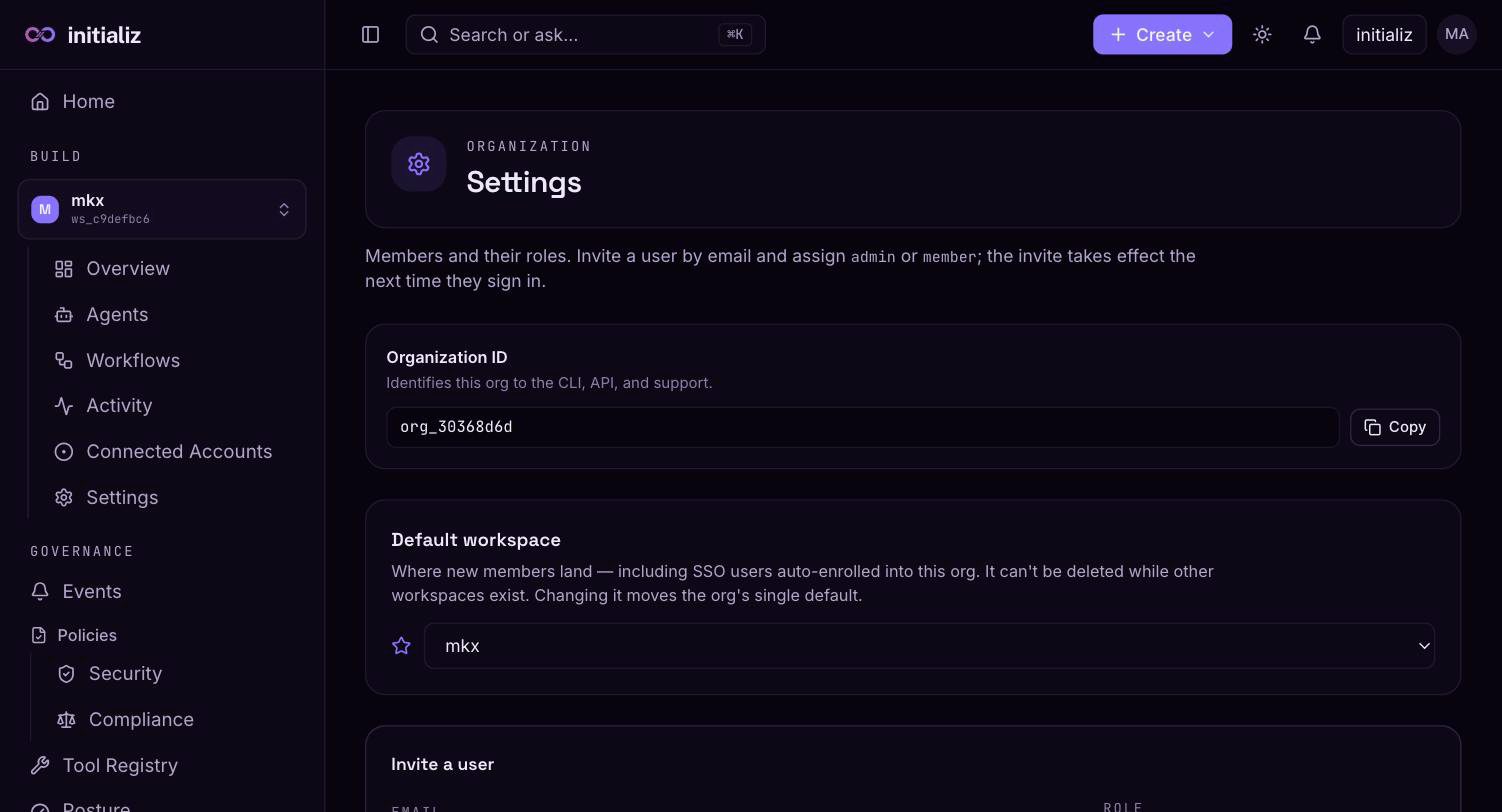
Invite a user by email — it must match the email their identity provider asserts, because membership is keyed by email. Choose a role:
- Org admin — everything, org-wide.
- Org member — org access only; workspace grants determine what they can build.
- Security admin — the org-wide governance persona: full access to the Governance area (events, policies, tool registry, agent identity, posture, usage), including authoring trust-mode floors and taking agent lifecycle actions — but not org administration (members, environments, gateway). A security admin with no workspace grants sees no Build section and lands on the agent-identity portfolio instead of the builder home; adding workspace grants restores Build alongside Governance.
- Workspace admin — manages one workspace; you pick the workspace as part of the invite.
- Developer — builds within one workspace; also workspace-scoped.
Workspace-scoped grants automatically make the user an org member. The invite takes effect the next time the user signs in — there is no email notification to accept.
Managing existing members
Each member row is read-only until you click its edit (pencil) action:
- Change the org role — switch a member between org admin, org member, and security admin; save applies it immediately.
- Revoke workspace access — remove an individual workspace grant from the member without touching their org membership.
- Remove the member — removes them from the organization entirely; they can still authenticate with the identity provider but will land on the "no organization" screen.
How roles map to workspaces
Within a workspace, a member appears as either Workspace admin or Developer. Org admins are not listed per workspace — they implicitly have access to every workspace, including creating new ones. For how these roles shape day-to-day work, see Workspaces and environments.