
Govern a tool with compliance rules and PDP
An end-to-end walkthrough — author value-level compliance rules for a registered tool, tighten them per agent, turn on fail-closed PDP enforcement, then watch a deferred call get approved and read its audit trail.
This guide takes one tool operation from ungoverned to fully governed: you author the rules that decide each call over its actual argument values, enable enforcement on an agent, and then watch a real call get parked, approved, and audited. Each step links to the reference page that covers it in depth — start with Compliance and tool-call decisions if you want the decision model first.
The running example is a fee-reversal operation on a payments API: reversals up to $100 are fine, up to $1,000 need a manager's approval, anything larger is refused.
Before you start
- The tool is registered. Compliance rules can only govern operations of tools admitted to your org's Tool Registry — the rule editor's picker lists registered operations and nothing else, and a call to an unregistered operation is denied outright. Register the tool (for an API, from its OpenAPI spec) before authoring rules; the operation's typed argument fields come from what registration captured.
- Permission to author. Publishing compliance rules requires the compliance-author permission; org admins have it. The console shows the editor either way, but the platform rejects an unauthorized publish.
- An agent that uses the tool — or the intent to create one. Steps 2 and 3 happen on the agent; if you don't have one yet, see Create an agent with the skill builder.
Step 1 — author the org baseline
Go to Governance → Policies → Compliance. This screen is the org baseline: rules authored here govern the operation for every agent that calls it, so it is where the policy itself belongs. Per-agent authoring (Step 2) only ever tightens what you write here.
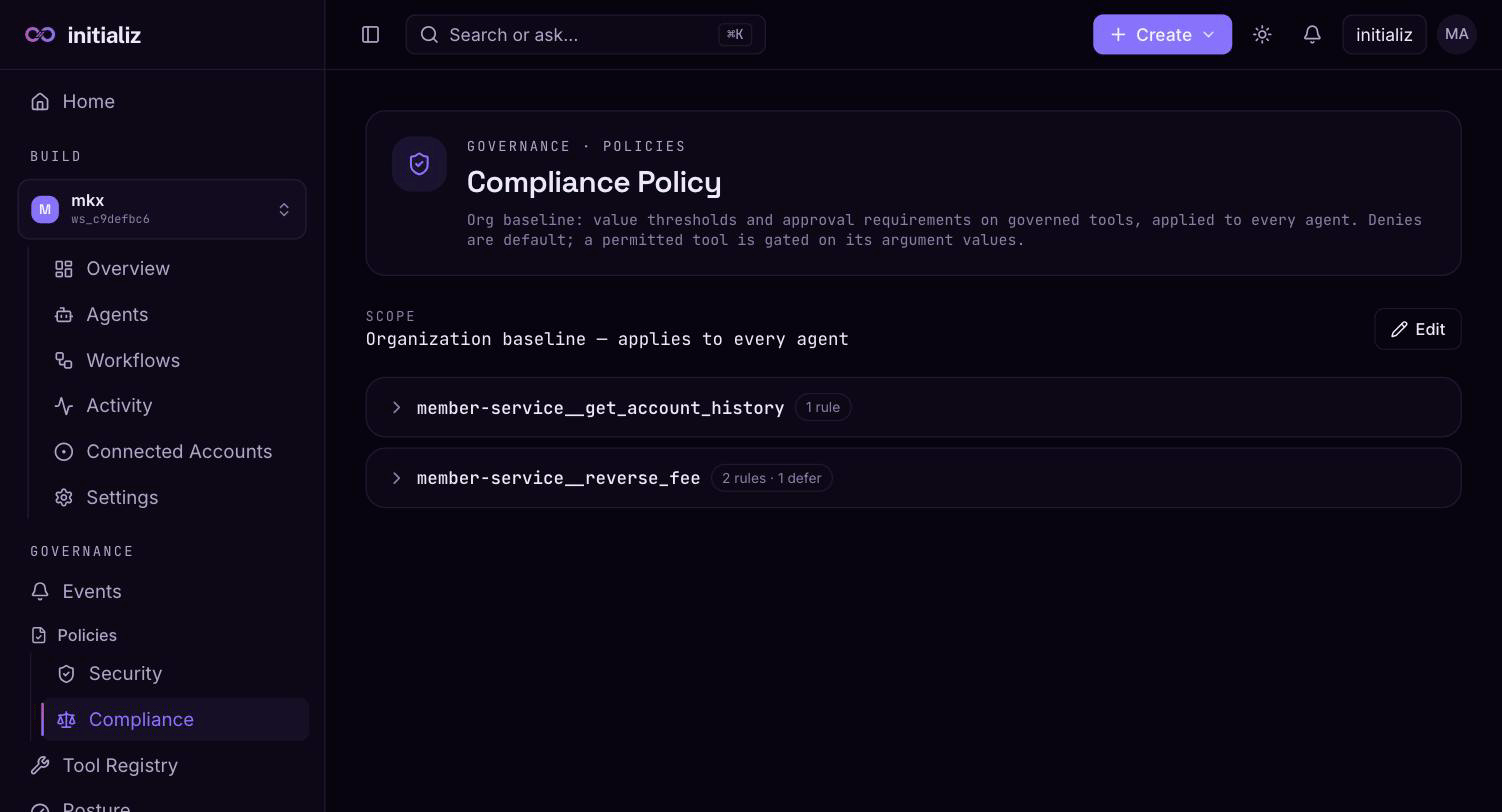
Click Edit, then work tool by tool:
- Add the tool. Add tool opens a picker over the operations of
registered tools — choose the tool, then the operation. The picker
composes the rule key (
<server>__<operation>, for examplepayments__reverse_fee) so you never hand-type it. Only API and MCP registry entries appear here; command-line binaries are governed at a different altitude. - Add the rules. Add rule inserts a worked example — an
allow-with-threshold (
amount ≤ 100 → allow) — so the shape is obvious; edit it in place. Each rule is a set of conditions over the operation's typed argument fields (the fields come from the registered schema, offered as a dropdown) with the operators≤,<,≥,>,=,≠,in, andnot in. All conditions in a rule must hold for it to match; a rule with no conditions matches everything, which makes it a catch-all. - Pick each rule's outcome — allow or defer. A defer rule also names its approvers (the emails who may decide the parked call) and a maximum timeout the approval may wait. There is no authored deny: deny is what happens when no rule matches.
- Order matters. Rules are shown in evaluation order and the first
match wins — put the specific allow above the broad defer. For the
running example: rule 1
amount ≤ 100 → allow, rule 2amount ≤ 1000 → defertofinance-lead@example.comwith a1htimeout. A $50 reversal matches rule 1 and proceeds; $500 falls through to rule 2 and parks; $5,000 matches nothing and is denied.
Save publishes the baseline. Every publish increments the policy version, and every decision record carries the version that produced it.
Step 2 — optionally tighten per agent
If one agent should be held to a stricter standard than the org baseline, open that agent's detail page and its Governance tab. It hosts the same rule editor, scoped to this agent only.
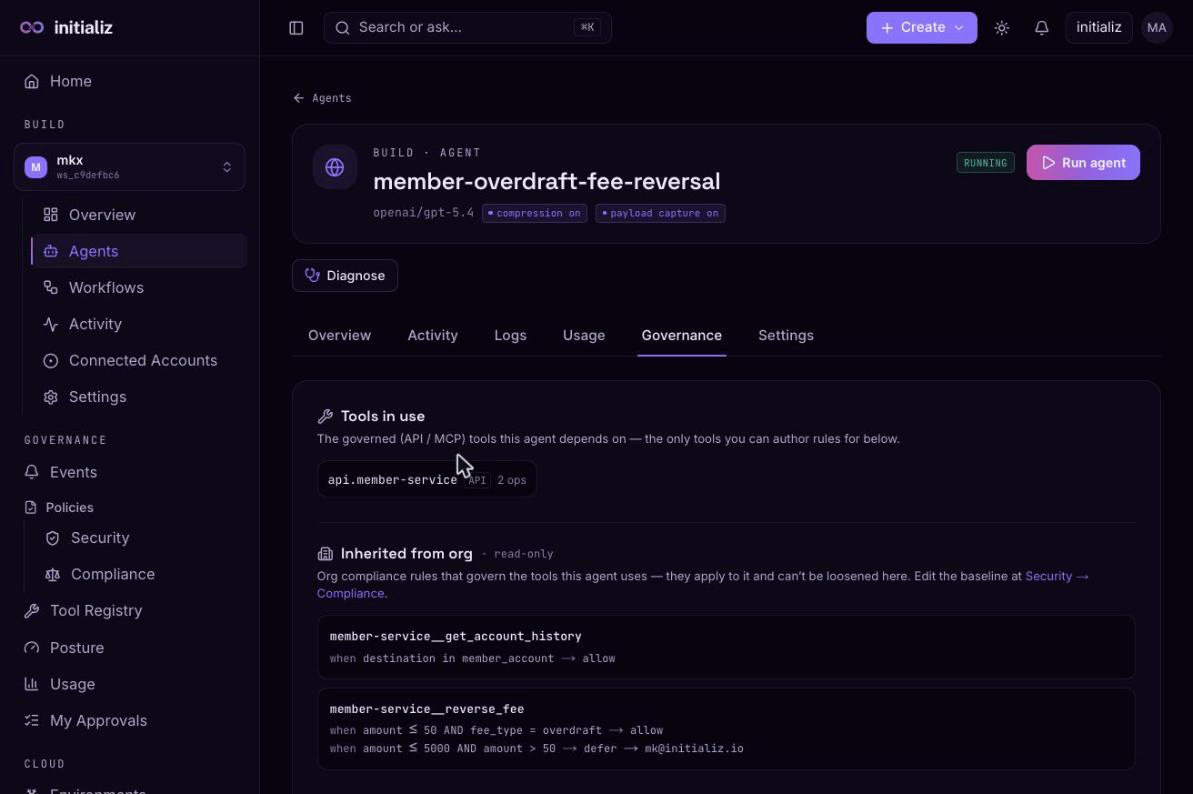
The overlay is tighten-only: the two scopes are composed
most-restrictive (deny beats defer beats allow), so a per-agent rule
can lower a threshold or add an approval, but can never loosen what the org
baseline decided. When both scopes independently defer the same call, the
approver lists are combined and the shorter timeout wins — an org-required
approver can never be dropped by a per-agent rule.
The Governance tab is also where deferral routing lives: per operation, choose whether this agent's approval prompts go to the platform inbox (the default), a Slack channel (offered when the agent has Slack connected), or an email address.
Most agents need no overlay at all — an agent with an empty Governance tab is governed entirely by the org baseline. A scope with no rule for a tool simply abstains; adding an overlay rule for one tool never affects the agent's other tools.
Step 3 — enable Enforce PDP policy on the agent
Enforcement is opt-in per agent. On the agent's configure screen — when creating it, or later from its configuration — turn on the Enforce PDP policy toggle in the Governance section.
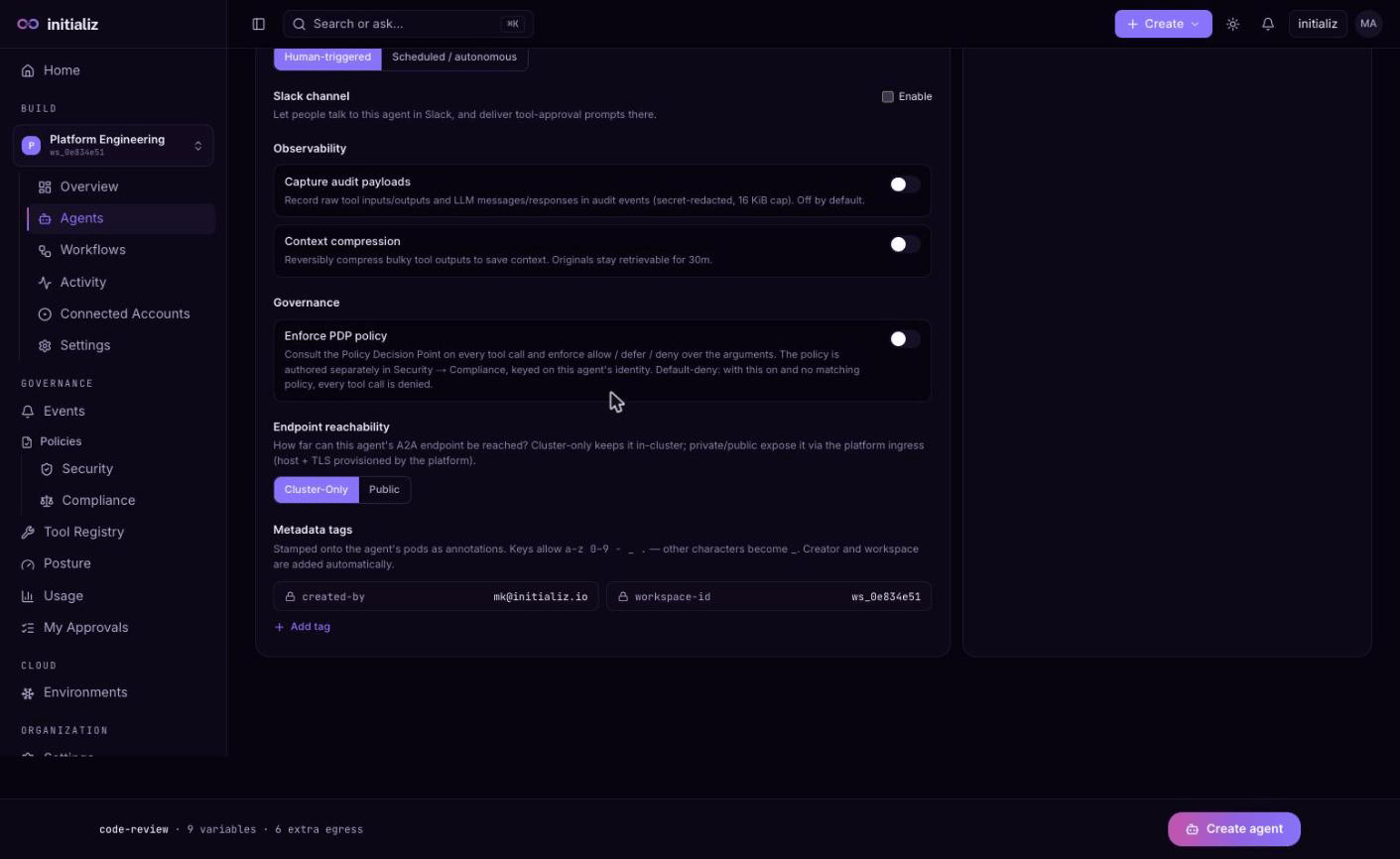
With the toggle on, every tool call the agent proposes is evaluated live against your compliance rules, and evaluation is strictly fail-closed. Practically, that means:
- A call whose operation has no matching rule — including an operation you simply forgot to add — is denied. So author rules for every operation the agent's skills use before flipping the toggle; the agent's skill (its governed tool dependencies and their selected operations) tells you the full list.
- If no compliance policy exists at either scope, every governed call is denied.
- An evaluation failure — the platform can't read the policy or the registry at decision time — is a deny, never a silent allow.
Turning the toggle on is a configuration change like any other: save it and the agent redeploys with enforcement active. The rules themselves need no redeploy — see Step 5.
Step 4 — exercise the policy and read the trail
Run the agent (chat with it from its detail page) and ask for something that crosses the defer threshold — in the running example, a $500 fee reversal.
- The call parks. The agent reports it is waiting for approval, and the parked call appears in the approvers' My Approvals queue (or in Slack or email, if Step 2 routed it there). The prompt shows the operation, the agent asking, and a summary of the argument values.
- Approve it. The decision is relayed to the waiting agent immediately and the call proceeds. A deferral nobody decides within its timeout expires and the call is refused.
- Read the audit trail under Governance → Events. Every verdict —
allow, defer, and deny alike — is recorded, and the
Events screen's default security-relevant filter
already includes the whole family:
tool_call_decided(the platform's verdict: decision, reason, which scope bound it, the policy versions consulted, and a bounded argument summary),pdp_decision(the agent-side record of enforcing that verdict), and the deferral lifecycle —task_deferredwhen the call parked,task_deferred_decisionwhen your approval landed, ortask_deferred_timeoutif it expired.
Also try a call under the allow threshold (it proceeds, and still leaves a
tool_call_decided allow record) and one over every rule (denied, with
the deny reason in the event detail). Denials are a permanent record, not
just a block.
Step 5 — iterate: rule changes apply live
The decision is made fresh on every call, against the currently published rules. Editing a rule and saving applies to the agent's very next tool call — there is no propagation step and no agent redeploy. Tune thresholds, approvers, and timeouts as freely as you like; the policy version in each decision record tells you exactly which revision produced any given verdict.
Troubleshooting
Every call is denied
Deny is the default, so a blanket deny almost always means the rules aren't reaching the call:
- No rule for the operation. A scope with no rule for a tool abstains,
and when both scopes abstain the call is denied. Check that the operation
appears in the org baseline (or the agent overlay) — the event's deny
reason says
no compliance rule for toolwhen this is the cause. - No policy at all. If neither scope has ever been published, every
governed call is denied (
no policy configured). - The operation isn't registered. A call to an operation no admitted
registry tool provides is denied (
op is not governed by any admitted registry tool) — register the tool first. - A hard ceiling. Beneath the compliance rules, org security admins maintain a hard allow/deny ceiling on operations that isn't shown on the Compliance screen; an operation outside it is denied regardless of your rules. If the deny reason mentions the security ceiling, that's the layer to raise with your security admin.
A rule exists but never matches
- Check the key. Rules are keyed
<server>__<operation>and the key is identity-independent: the platform canonicalizes whatever runtime name the agent called — including any connection- or identity-specific variant — back to the logical operation before matching. One rule governs the operation everywhere, so if it isn't matching, the key itself is wrong: use the Add tool picker rather than typing keys by hand, and compare against thetoolandopfields on the call'stool_call_decidedevent. - Check the conditions. All conditions in a rule must hold, and a condition on an argument the call didn't include fails (fail-closed) — the event's argument summary shows the values that were actually evaluated. Remember the first matching rule wins: a broad rule above a specific one shadows it.
An edit doesn't seem to take effect
Rule edits do apply live — to the next call. If behavior looks stale,
make sure the edit was actually saved (published), and check the
tool_call_decided event's policy version: if it shows the new version, the
rules you published are the rules being applied, and the verdict is telling
you what they decide. The one thing that does require a redeploy is the
Enforce PDP policy toggle itself, since it is agent configuration.
Connect your personal account for user-delegated tools
An end-to-end walkthrough of delegated consent — connect your own account ahead of time, from a Connect prompt in a conversation, or from a Slack DM, and what happens when you decline, wait too long, or disconnect.
Approve deferred actions — console and Slack
Set up where an agent's deferred tool calls ask for approval — the My Approvals inbox, a Slack channel, or email — then act on them and verify the audit trail.