
Register an MCP server in the Tool Registry
An org-admin walkthrough — admit a remote MCP tool server into the org registry, choose how agents authenticate to it, discover its tools, and review the admitted operations.
This guide registers a remote MCP server — an external tool server speaking the Model Context Protocol — into your org's Tool Registry, so skills can depend on its tools. Each step links to the reference page that covers it in depth; for how admitted tools reach agents at all, see MCP servers.
Before you start
- The org admin role. Every workspace member can view the registry, but registering, refreshing, and removing entries is org-admin only — the platform enforces this on every write, and the Register tool button only renders for admins.
- The server's URL. The server must speak MCP over HTTP(S) and be reachable from the platform, which connects to it at registration to list its tools. Loopback and cloud-metadata addresses are refused; private in-cluster addresses are allowed.
- A credential that can list tools, if the server requires one. Many servers refuse an unauthenticated tool listing. Any token that can list tools works as a one-shot discovery credential — it doesn't have to match how agents will authenticate at runtime.
Step 1 — open the Tool Registry
Go to Governance → Tool Registry. The table lists every admitted entry — command-line, MCP, and API — with its operations expandable inline.
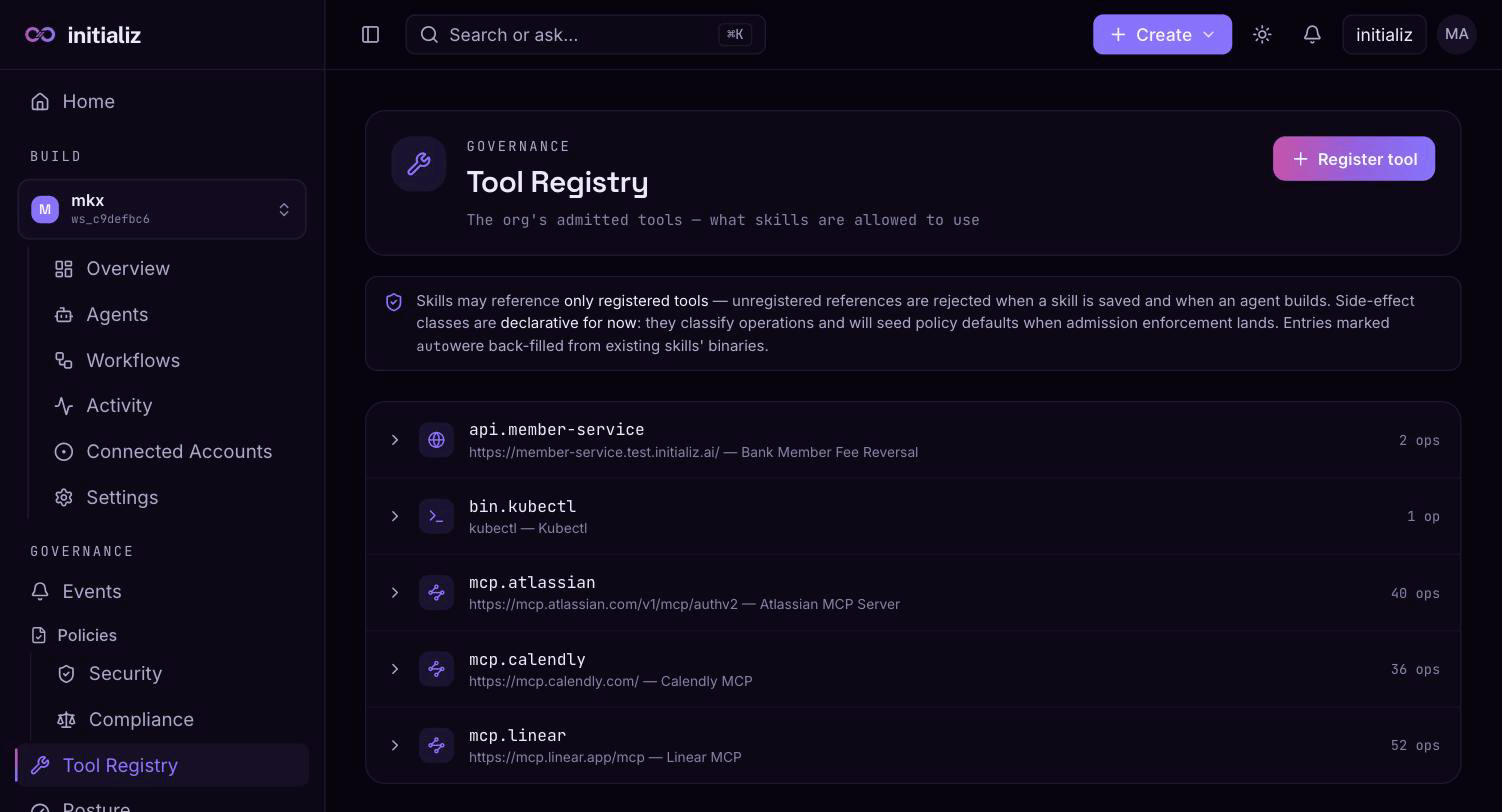
Click Register tool. The registration dialog offers three entry types; pick MCP server ("remote tools over MCP"). The other two — command-line binaries and APIs from an OpenAPI spec — are covered in the Tool Registry reference.
Step 2 — name the entry
Give the entry a key and an optional description. The key is how
the server is addressed everywhere downstream — in skill dependencies
and in compliance rules (as
<server>__<operation>) — so follow the convention mcp.<name>, e.g.
mcp.linear. Keys are lowercase (letters, digits, dots, hyphens,
underscores; up to 64 characters) and unique within the org:
registering a key that already exists is rejected with a conflict
("a tool with this key is already registered in the org").
Step 3 — point at the server
Enter the Server URL — the http(s) endpoint agents will call, e.g.
https://mcp.linear.app/mcp.
Step 4 — choose how agents authenticate
The Auth selector is the runtime story — how agents authenticate to this server on every call:
- none — the server is called unauthenticated.
- bearer token / static token — the form previews the
platform-assigned token variable, derived from the key as
MCP_<KEY>_TOKENwith themcp.prefix dropped (mcp.linear→MCP_LINEAR_TOKEN). The registry stores only the name: whoever finalizes an agent that uses this tool is prompted for the token value there, and it is vaulted per agent — never stored on the registry. - oauth — the form requires a review step before you can register. Click Resolve: the console reads the server's declared OAuth metadata and shows the authorization server's origin, its authorize and token endpoints, its client-registration endpoint (a server that doesn't offer one cannot be admitted), and the scopes it advertises. Select which scopes to request — the default is everything advertised, and deselecting all falls back to the full set. Registering pins exactly what you reviewed: those endpoints are where agents authenticate from then on, a client is minted once against the platform's callback, and later drift on the server's side is surfaced on refresh but never silently adopted. Registration then opens a one-time consent to validate the minted client and list the server's tools — consent as a dedicated service account, not a personal login, because the identity you authorize is the identity on every agent read of this server.
Step 5 — decide on discovery
Discover tools now (on by default) connects to the server during registration and runs its tool listing — each discovered tool becomes a registry operation. If the server requires authentication to list tools, paste a Discovery token: it is used once for that listing call and never stored, independent of the runtime auth you chose above (an OAuth-at-runtime server can be discovered with a pasted access token, and vice versa). Leave it blank to try unauthenticated.
For OAuth entries with no discovery token, the listing simply waits for the consent round-trip instead — an unauthenticated attempt would fail an otherwise good registration.
You can also uncheck discovery entirely: the entry is admitted with no operations, and you run a refresh later once the server is reachable.
Step 6 — register and review the operations
Click Register. For OAuth entries the browser goes to the authorization server's consent page and returns to the registry with a banner reporting whether consent completed and the tools were enumerated.
Expand the new entry in the table and read what discovery brought back
before any skill depends on it: each operation's name, its description,
and its side-effect class chip — read, mutating, or
destructive, seeded from the server's own tool annotations and
defaulting to mutating when a tool declares nothing (never assume a
remote tool is read-only). Side-effect classes are declarative today;
see the Tool Registry reference for how
they feed governance.
Step 7 — make the server usable by agents
Registration admits the server org-wide; using it usually needs an identity per workspace. For servers whose operations act as a workspace service account, a workspace admin creates a named connection under Build → Connected Accounts — see Connected Accounts and the step-by-step guide Set up workspace service connections. From there the skill builder can pick the server as a dependency and bind it to a connection by name.
Two maintenance actions keep the entry honest later, both org-admin and both covered in depth in the Tool Registry reference:
- Refresh (MCP entries only) re-runs discovery against the live server and reports the drift — operations added, removed, and those whose input schema changed — accepting the same one-shot token. For OAuth entries it also re-reads the server's advertised authorization metadata and flags any mismatch against what was admitted; the pinned values are always kept.
- Remove deletes the entry — but the platform refuses while any skill still references it, naming the agents involved. Remove the skill references first.
Create an agent with the skill builder
An end-to-end walkthrough — describe an agent in plain English, refine the drafted skill in a conversation, review and test it, configure the agent, and watch the first build.
Register an API from its OpenAPI spec
An org-admin walkthrough — admit a REST API into the Tool Registry from its OpenAPI 3.x document, review the operations the platform discovers, and understand what agents and compliance rules see afterwards.