
Approve deferred actions — console and Slack
Set up where an agent's deferred tool calls ask for approval — the My Approvals inbox, a Slack channel, or email — then act on them and verify the audit trail.
A deferral pauses an agent mid-run on a sensitive tool call and waits for a named person to approve or deny it — the call is parked, not failed, and silence never means yes. This guide sets up where those approval prompts are delivered for an agent, then walks both ways of acting on them: the console's My Approvals queue and an interactive Slack message. Each step links to the reference page that covers it in depth.
Before you start
- Something that defers. A deferral is produced either by a
compliance rule with a
deferoutcome (see Govern a tool with compliance and the PDP) or by a per-operation approval gate declared on the agent itself (Step 1 covers both). - An approver identity. Approvals are attributed to a verified email. In the console that is your signed-in identity; over Slack it is the email on your Slack profile.
- Slack on the agent, if you want Slack delivery. The Slack route is only offered for agents built with a Slack channel — see Channels and providers.
Step 1 — know where deferrals come from
Two configurations produce a deferral; routing (Step 2) applies to both.
Compliance defer rules. When an agent has Enforce PDP policy
enabled, every tool call is evaluated over its actual argument values,
and a matching rule with a defer outcome parks the call for the rule's
approver emails — "reversals over $100 need a finance approver". Author
these at the org baseline or on the agent's Governance tab; the
end-to-end setup is the
compliance and PDP guide.
Per-operation approval gates on the agent. In the agent's Tools configuration (on the create screen, or later in Settings), each governed tool operation carries an Identity & approval control with a Requires approval toggle. Turning it on parks every call to that operation, unconditionally — no argument-value evaluation involved — and asks for a Route to target and an Approvers email list right there. Some combinations force the gate on: a write that runs as the agent's service identity on a human-triggered agent requires approval, because the approval is what binds the action to a person.
Route the gate to a separate approver, not back to the requester — self-approval is confirmation, not authorization.
Step 2 — choose the delivery route per agent
Deferral routing for compliance-driven defers is configured per agent, per tool operation, on the agent's Governance tab — open the agent under Build → Agents and switch to Governance. Beneath each governed operation's rule list sits a defer route row:
- Platform inbox (the default) — the prompt appears in the approvers' My Approvals queue in the console. An org-baseline defer with no agent-level route configured delivers here.
- Slack channel — enter the channel (for example
#approvals, or a channel id). This option only appears when the agent was built with a Slack channel: a Slack defer cannot be delivered unless the agent runs the Slack adapter. If a saved Slack route outlives the agent's Slack channel (the agent was rebuilt without it), the editor keeps the route editable but warns that the prompt won't be delivered until Slack is re-enabled. - Email — enter an approver email address.
The route row also takes a timeout (for example 10m). The
effective window is the smaller of this route timeout and the
compliance rule's maximum — the agent can tighten the window, never
extend it; with neither set, the runtime default of 10 minutes applies.
Publishing the change requires a justification, like any policy edit.
Whatever the route, the deferral itself is identical: the parked call waits for a decision from a listed approver, and expires refused if none arrives in time.
Step 3 — act in the console with My Approvals
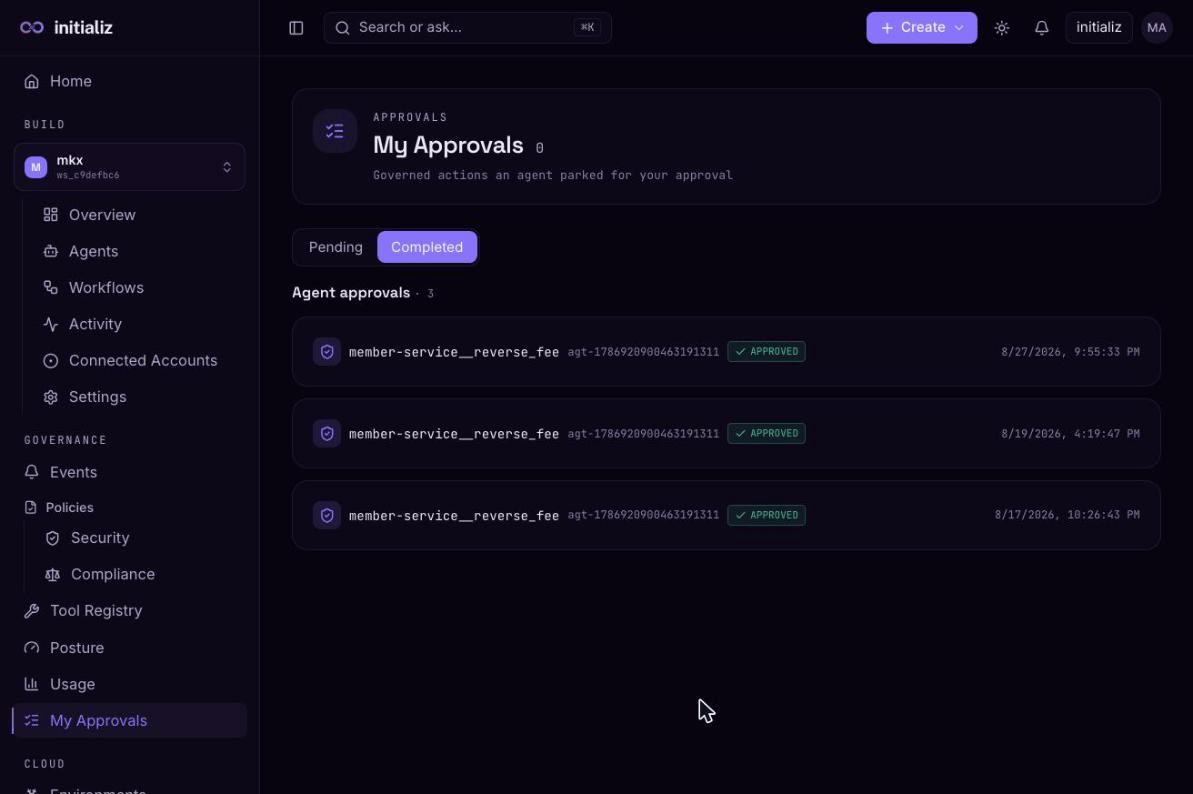
My Approvals sits in the Build group of the console sidebar — a personal queue, scoped to your signed-in email. A parked call appears here only when its approver list names you; a deferral that names no individual approvers appears in no one's personal queue (it is visible to admins on the security surfaces, but nobody can act on it from a personal inbox).
Each card shows the tool operation the agent wants to call, the agent asking, how long ago the call parked, and a human-readable context summary of the call and its argument values.
- Approve — the agent proceeds with the parked call and the run resumes as if it had never paused.
- Deny — the call is refused and the agent receives the refusal.
Either way the decision is relayed to the waiting agent immediately. The queue refreshes itself every few seconds, so a gate another approver decided — or one that timed out — drops out on its own.
The window is short by design: a deferral that nobody decides within its timeout (Step 2) expires and the parked call is refused — the agent receives an automatic deny, never a silent allow. The queue shows open gates from the last 24 hours; since a deferral cannot outlive its timeout, anything older is treated as closed. Full reference: Approvals and consents.
Step 4 — act over Slack
When the route targets a Slack channel, the runtime posts an interactive message there: what the agent wants to do — the tool operation and a summary of its arguments — with Approve and Reject buttons.
- Approve resolves the deferral immediately; the tool runs and the task resumes.
- Reject opens a short dialog asking for a reason; the call fails with that reason, which is recorded with the decision.
After the decision the message updates in place to show the outcome and who made it. When an approver list is set, the clicker's Slack profile email is checked against it — a decision from anyone else is refused and the request stays pending for a listed approver. Without an approver list, anyone who can see the message can decide: treat the channel's membership as a privileged grant and use a tightly scoped private channel. Two operational notes: the bot must be a member of the target channel or the post fails, and a conversation that arrived through a chat channel holds its request open for a bounded window (about six minutes). A later approval still resumes and completes the parked work — the deferred task is detached from the triggering conversation — but only a decision inside the window lands its outcome back into that chat exchange, so keep chat-facing approval timeouts inside it for a clean in-conversation experience. See Approvals for the runtime-level detail.
Step 5 — verify the audit trail
The whole lifecycle is auditable in the event stream:
task_deferred— the call parked: the tool, the delivery route, the timeout, and the context summary shown to approvers.task_deferred_decision— an approver decided: the decision, the approver of record, any rejection note, and how long the call waited. A refused decision attempt (an unlisted approver) is recorded here too, marked unauthorized.task_deferred_timeout— nobody decided in time and the call was auto-denied.
The approver of record is always the verified identity that made the decision — your signed-in email in the console, the verified profile email behind the Slack click — never a name the client merely claims.
Troubleshooting
Nothing appears in My Approvals. The queue is personal: the
deferral's approver list must name your signed-in email exactly (a typo
in an approver entry can never match — it fails closed). A defer with no
named approvers appears in no one's queue. If you were named, the gate
may already be gone — another approver decided it, or it expired at its
timeout (check the event stream for the task_deferred_decision or
task_deferred_timeout that closed it). Gates older than 24 hours never
show.
The Slack prompt was not delivered. The agent must be built with a Slack channel — the Governance tab warns when a Slack route points at an agent without one; rebuild the agent with Slack enabled. Also confirm the bot is a member of the target channel. A failed delivery never auto-denies: the deferral still holds for its full window, and a named approver can still decide it from My Approvals.
Govern a tool with compliance rules and PDP
An end-to-end walkthrough — author value-level compliance rules for a registered tool, tighten them per agent, turn on fail-closed PDP enforcement, then watch a deferred call get approved and read its audit trail.
Deploy a CI-built agent from your pipeline
An end-to-end walkthrough — author the deploy spec, wire a CI job that builds the image and runs the CLI, pass secrets from the pipeline, verify the CI-managed agent in the console, and iterate.