
Set up workspace service connections
A workspace admin walkthrough — create named service accounts for admitted tool servers under Build → Connected Accounts, scope each one to a subset of tools, and bind skills to them by name.
When a skill's tools run as the workspace — a shared service identity rather than any individual person — they act through a workspace service connection: a named account the workspace holds on the tool server. This guide walks a workspace admin through creating one, scoping what it may call, and wiring skills to it. For the identity model itself — service accounts versus personal accounts, where grants live — see Connected Accounts; this page is the task walkthrough.
Before you start
- The workspace admin role. Managing service connections requires it (org admins qualify everywhere). Other workspace members don't see the panel, and the platform rejects their writes regardless.
- The server admitted to the Tool Registry. Connections are created against servers an org admin has already registered under Governance → Tool Registry — see Register an MCP server and Tool Registry. Only managed OAuth servers (admission validated the server and minted the platform's client) appear in the server picker. Servers that authenticate with a bearer or static token don't use connections at all — each agent supplies the token as a secret environment variable instead (see Secrets and environment).
- The service account's sign-in. Connecting hands you to the provider's consent screen, so have the credentials of the account you want the workspace to act as — a bot or service user, typically, not your personal login.
Connections are always per workspace: each workspace brings its own accounts, even for servers registered org-wide. Registering a server makes its tools available; until a workspace connects an account, agents in that workspace have no service identity to call it with.
Step 1 — open Connected Accounts
Go to Build → Connected Accounts in the sidebar. As a workspace admin you see the Workspace service connections panel at the top of the screen, above your own personal accounts.
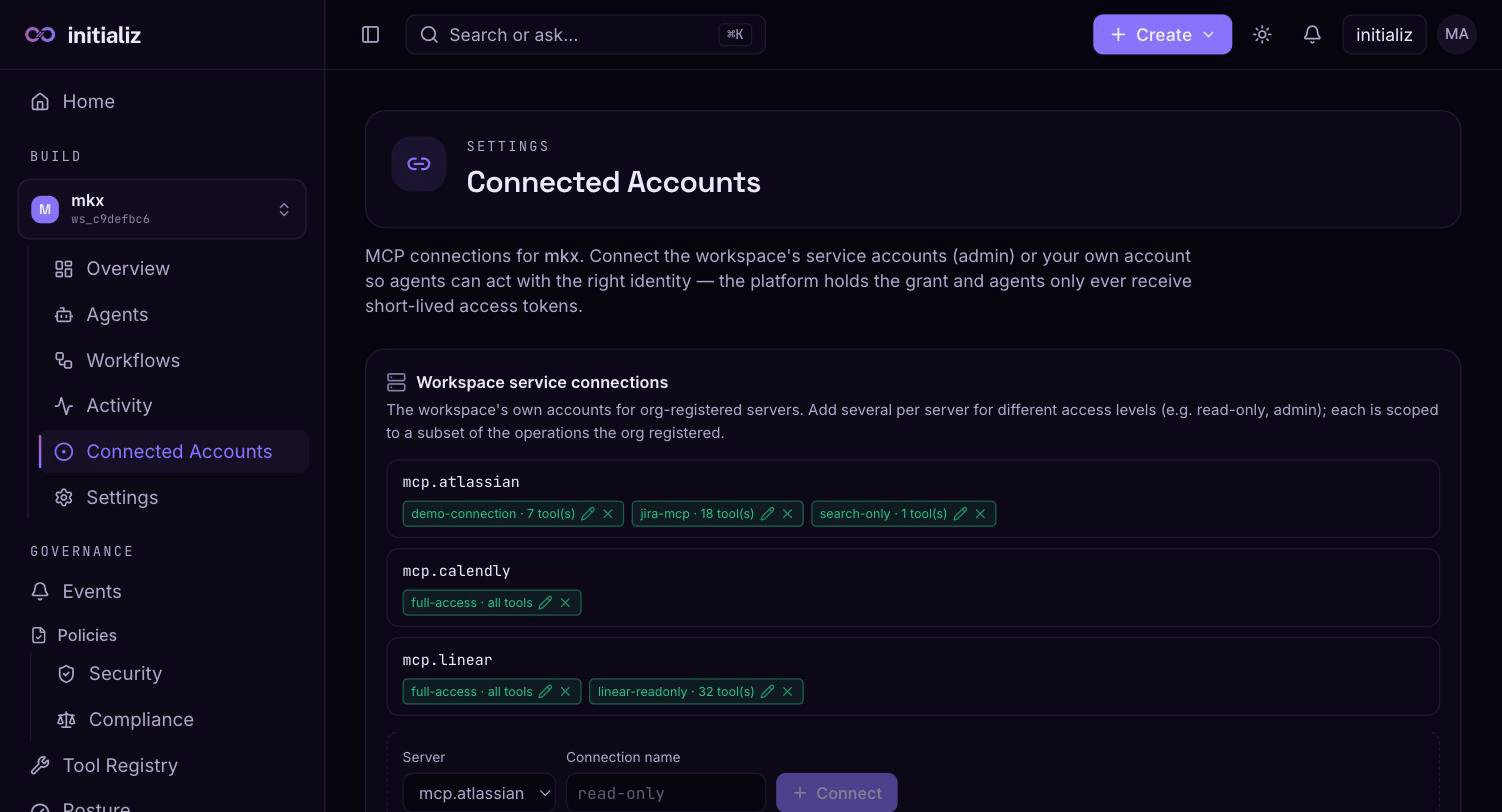
If the panel says there are no connectable servers, no managed OAuth server has been registered yet — that's the org-admin step in Register an MCP server.
Step 2 — pick the server and name the connection
In the panel's add row, pick the server (listed by its registry key,
e.g. mcp.linear) and type a connection name — lowercase letters,
digits, and dashes, like read-only or admin. Pick a name that
describes the access level, not the account: the name is how skills
reference the connection, and it shows up wherever a skill or agent
declares which identity it acts through.
Step 3 — scope the allowed tools
Below the name, the server's registered operations appear as toggles. The selection you make here is the connection's allowed-tools list, and it is a ceiling, not a suggestion:
- Selecting none allows all of the server's registered operations — an unrestricted connection.
- A selection can only be drawn from what the org registered — a connection can never grant more than the registry entry exposes.
- At build time the list is enforced as a hard ceiling over every operation a skill selects on that server. A skill that selects an operation outside its connection's list fails its build with an error naming the operation and the connection — the platform never silently drops the operation, because a silently narrowed tool set would leave the skill's instructions referencing a tool that doesn't exist at runtime.
Step 4 — complete the provider consent
Click Connect. The browser navigates to the provider's own consent screen — sign in as the service account and approve. There is no token to paste anywhere: for managed servers the flow is always OAuth consent, the platform stores the resulting grant, and agents only ever receive short-lived access tokens minted from it. The grant must include offline access (a refresh token); a provider that returns none fails the connection with an explicit message — fix the server's scopes and reconnect.
Approving returns you to the Connected Accounts screen, where the new connection appears under its server with its name and tool count (or all tools).
Step 5 — add more connections for other access levels
Repeat Steps 2–4 with a different name to give the same server several
identities — for example a read-only connection backed by a
low-privilege account and scoped to read operations, and an admin
connection backed by a privileged account with no restriction. Each
connection is one account plus one ceiling; a skill picks exactly one.
Step 6 — bind skills to a connection
Skills reference a connection by name: the as picker on a tool in the skill builder, and the connection choice in the Tools section of the agent configure screen. The pickers list the workspace's real connections for that server.
If a skill is bound to a connection name that doesn't exist in the
workspace yet, the agent still builds and deploys — but every call
through that connection is refused with an error naming it (service
connection <name> … is not connected — a workspace admin must Connect
it) until an admin creates the connection under exactly that name. The
same applies to a server used under its default service identity with no
connection at all: registry admission alone never serves agent calls —
the workspace must connect its own account first.
What does fail an agent's build immediately: a selected operation outside the bound connection's allowed tools (Step 3's ceiling), or a connection set on a server that isn't a managed OAuth entry.
Change a connection's scope later
Click the pencil on a connection to edit its allowed tools, toggle operations, and Save. No re-consent is needed — the stored grant is untouched; only the ceiling changes. Agents bound to the connection pick up the new list at their next rebuild; already-built agents keep the tool set baked into their image until then (see Building and deploying). Note that narrowing a connection below what a bound skill selects makes that agent's next build fail the ceiling check — adjust the skill or the connection together.
Repair a broken connection
A connection whose grant has stopped working — revoked upstream, for example — is flagged broken in the panel. Re-run Connect with the same server and the same name: completing consent replaces the stored grant in place, and nothing needs rebinding or rebuilding.
Delete a connection and understand the blast radius
The × on a connection removes its grant immediately. Agents bound to it keep running, but every tool call through that connection is refused from the next call onward, until an admin reconnects under the same name. Skills and agents don't need editing either way — the binding is by name, so reconnecting restores service as-is. Deleting a connection touches nothing else: the registry entry, other connections on the same server, and users' personal accounts all remain.
Register an API from its OpenAPI spec
An org-admin walkthrough — admit a REST API into the Tool Registry from its OpenAPI 3.x document, review the operations the platform discovers, and understand what agents and compliance rules see afterwards.
Connect your personal account for user-delegated tools
An end-to-end walkthrough of delegated consent — connect your own account ahead of time, from a Connect prompt in a conversation, or from a Slack DM, and what happens when you decline, wait too long, or disconnect.