
Connect your personal account for user-delegated tools
An end-to-end walkthrough of delegated consent — connect your own account ahead of time, from a Connect prompt in a conversation, or from a Slack DM, and what happens when you decline, wait too long, or disconnect.
Some agent tools act as you rather than as a shared workspace identity — the ticket is filed under your name, the message sent from your account. Before an agent can do that, you connect your own account on the external service, once per workspace. This guide walks every way that connection happens — ahead of time, mid-conversation, and over Slack — and what to do afterwards. Each step links to the reference page that covers it in depth.
Before you start
- A workspace. Connections are always per workspace — each workspace brings its own accounts, even for services registered org-wide. If you have none yet, see First login.
- An agent whose tools act as the user. Which identity a tool acts with is set when the agent is configured; the split between workspace service accounts and your own account is explained in Connected Accounts.
- Your own account on the external service. You will sign in to it directly — the platform never sees your password.
- No special role. Every workspace member connects their own accounts; only workspace service connections need an admin.
Step 1 — connect ahead of time from Connected Accounts
You don't have to wait for an agent to ask. Go to Build → Connected Accounts and find the Your connected accounts list — every service whose tools act as the signed-in user, with your current connection state on each.
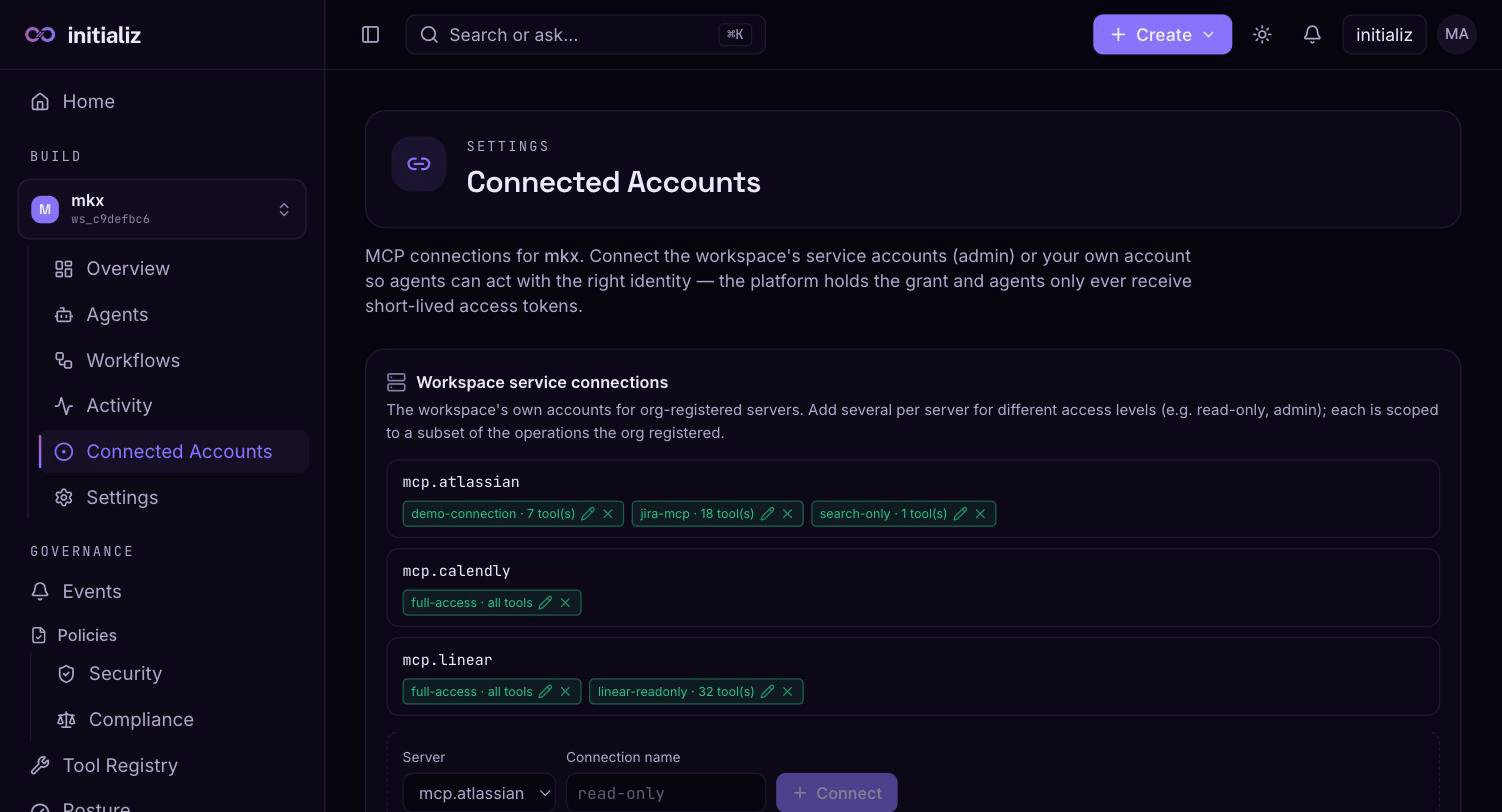
Click Connect on a service. The browser hands off to that service's own sign-in and consent screen — a standard OAuth authorization — and returns you to the same console screen when you finish:
- Approve and you land back with a Connected confirmation; the service now carries a Connected badge.
- Decline on the provider's screen and you return with an Authorization declined notice — nothing is saved, and you can try again any time.
That's it. One connection covers every agent in the workspace that acts as you on that service — you won't be prompted again on your next request. If the list is empty, no service your agents use is configured to act as individual users; services appear here once an admin admits them to the Tool Registry.
Step 2 — connect when an agent asks mid-conversation
If you skipped Step 1, the first time an agent needs your account it asks in the conversation itself. A Connect banner appears above the chat, in one of two forms:
- The agent is waiting. The tool call is paused on a consent gate: "This agent is waiting for you to connect … to act as you", with the gate's expiry time. Connecting resumes the held call on its own — you don't re-send anything.
- Your account isn't connected yet. The banner appears before (or after) a turn that couldn't proceed: "This agent acts as you on …, and your account isn't connected in this workspace yet." If the turn already failed for that reason, the transcript says so and the console re-sends your last message automatically once you connect — the session's memory makes it a clean retry.
Either way, clicking Connect opens the service's consent screen in a popup, so the conversation stays put. Approve in the popup, and it closes itself; the conversation picks up within a few seconds — the paused call continuing, or the failed turn re-sent. (If a popup blocker eats the window, the browser navigates in the same tab instead and the paused call still resumes; you come back to the conversation yourself.)
Step 3 — connect from a Slack direct message
When the agent is connected to Slack (see Channels and providers), a paused call also reaches you where you already are: the agent runtime sends you a Slack DM with a Connect link naming the service it needs.
Open the link, sign in to the service with your own account, and approve. The parked call unblocks automatically — back in Slack, the agent simply continues its answer. One consent covers the service, not just the single call: every call parked for you on that service resumes at once, and your next request won't ask again.
The Slack DM, the in-conversation banner, and the Waiting for you to connect prompts on the Connected Accounts screen all complete the same connection — the parked call resumes whichever one you use.
Step 4 — if you decline, or do nothing
A consent gate never waits forever:
- Decline — refusing the prompt (the cancel action on the Slack message) fails the parked call immediately rather than leaving it idling. The agent receives an authorization-required error it can relay to the conversation.
- Do nothing — the gate expires after its wait window, about ten minutes, and the call fails the same way. Asking the agent again later simply opens a fresh gate.
Nothing is lost either way: no grant is stored, and the whole lifecycle
is auditable in the event stream —
mcp_auth_required when the call parks, mcp_auth_resolved when you
connect, mcp_auth_timeout when it expires. While a gate is open it
appears under pending consents — see
Approvals and consents — and in a workflow
run a step blocked on your consent shows as visibly waiting on a person.
The gate mechanics are covered in depth in the runtime's
Approvals page.
Step 5 — manage the connection afterwards
Build → Connected Accounts stays the home of your connections:
- See state. Each connected service carries a Connected badge. A connection whose grant has stopped working is flagged Reconnect needed — reconnecting repeats the same sign-in.
- Disconnect removes the grant. Running agents are unaffected until they next need your account — that call parks on a fresh consent gate and prompts you again, exactly as in Steps 2 and 3.
Throughout all of this, credential custody stays on the platform: your grant is vaulted platform-side, and agents only ever receive short-lived access tokens minted from it. The long-lived credential never reaches an agent, is never stored in an agent image, and disconnecting deletes the grant. The full identity model — including the workspace service connections admins manage on the same screen — is described in Connected Accounts.
Set up workspace service connections
A workspace admin walkthrough — create named service accounts for admitted tool servers under Build → Connected Accounts, scope each one to a subset of tools, and bind skills to them by name.
Govern a tool with compliance rules and PDP
An end-to-end walkthrough — author value-level compliance rules for a registered tool, tighten them per agent, turn on fail-closed PDP enforcement, then watch a deferred call get approved and read its audit trail.